Forgejo
Woodpecker comes with built-in support for Forgejo. To enable Forgejo you should configure the Woodpecker container using the following environment variables:
WOODPECKER_FORGEJO=true
WOODPECKER_FORGEJO_URL=YOUR_FORGEJO_URL
WOODPECKER_FORGEJO_CLIENT=YOUR_FORGEJO_CLIENT
WOODPECKER_FORGEJO_SECRET=YOUR_FORGEJO_CLIENT_SECRET
Forgejo on the same host with containers
If you have Forgejo also running on the same host within a container, make sure the agent does have access to it.
The agent tries to clone using the URL which Forgejo reports through its API. For simplified connectivity, you should add the Woodpecker agent to the same docker network as Forgejo is in.
Otherwise, the communication should go via the docker0 gateway (usually 172.17.0.1).
To configure the Docker network if the network's name is forgejo, configure it like this:
 services:
   [...]
   woodpecker-agent:
     [...]
     environment:
       - [...]
+      - WOODPECKER_BACKEND_DOCKER_NETWORK=forgejo
Registration
User OAuth Application
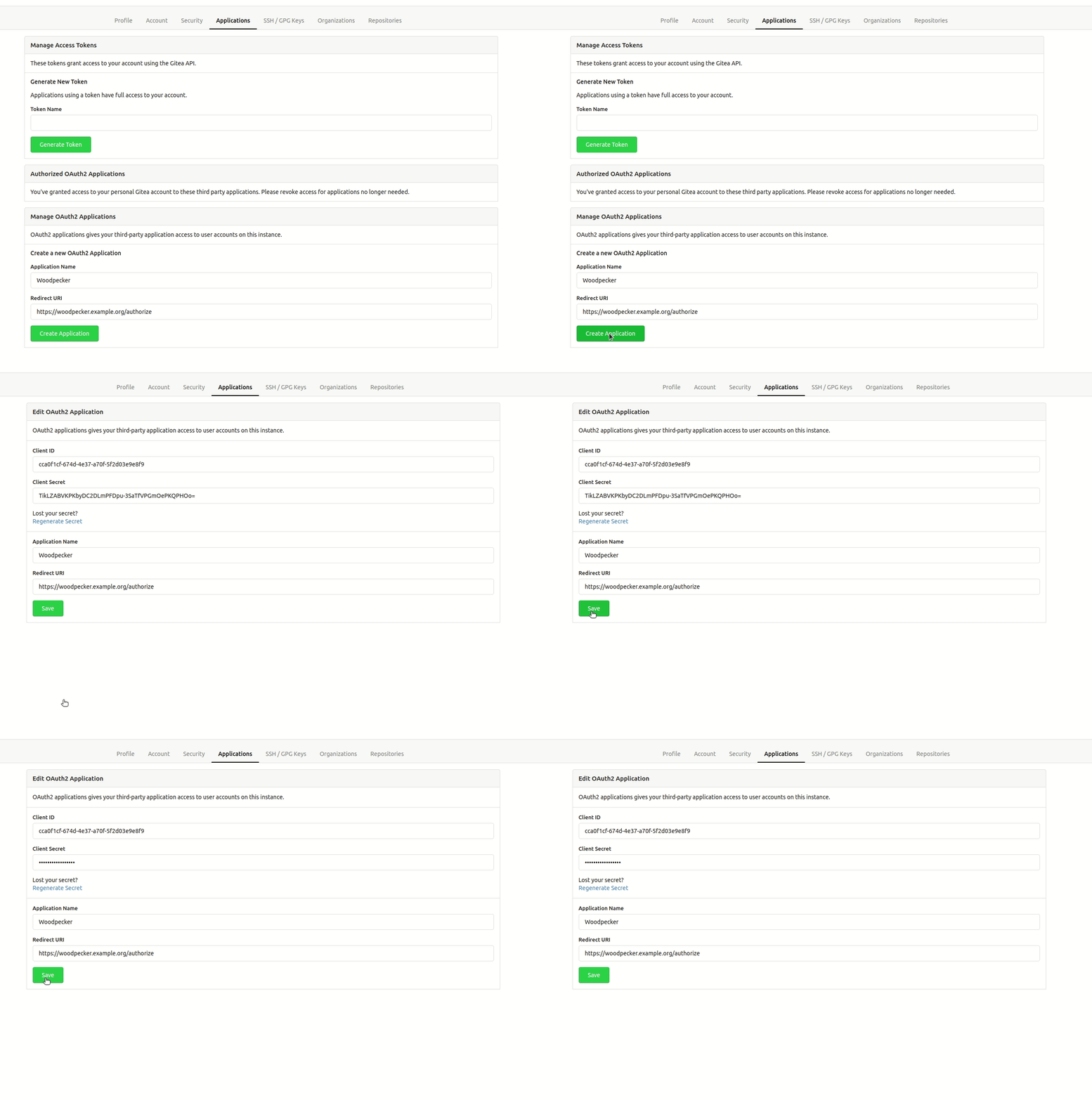
Register your application with Forgejo to create your client id and secret. You can find the OAuth applications settings of Forgejo at https://forgejo.<host>/user/settings/. It is very important that authorization callback URL matches your http(s) scheme and hostname exactly with https://<host>/authorize as the path.
System-wide OAuth Application
If you are the administrator of both Forgejo and Woodpecker, you may prefer to use a system-wide OAuth application instead of a user-level application. System-wide applications are managed at the Forgejo site administrator level and are visible to all users.
To create a system-wide OAuth application in Forgejo:
- Navigate to the site administration settings at
https://forgejo.<host>/admin/settings/applications - Create a new OAuth2 application under the "OAuth2 Applications" section
- Configure the application with the same settings as above (callback URL, etc.)
- Use the generated client id and secret for Woodpecker configuration
System-wide applications are particularly useful for:
- Shared CI/CD environments where multiple users need Woodpecker access
- Organizations that want centralized control over OAuth applications
- Preventing user-level application quotas from affecting CI/CD operations
Local Connections
If you run the Woodpecker CI server on the same host as the Forgejo instance, you might also need to allow local connections in Forgejo. Otherwise webhooks will fail. Add the following lines to your Forgejo configuration (usually at /etc/forgejo/conf/app.ini).
[webhook]
ALLOWED_HOST_LIST=external,loopback
For reference see Configuration Cheat Sheet.
Make sure your Forgejo configuration allows requesting the API with a fixed page length of 50. The default value for the maximum page size is 50, but if you set a value lower than 50, some Woodpecker features will not work properly. Also see the Configuration Cheat Sheet.
Configuration
This is a full list of configuration options. Please note that many of these options use default configuration values that should work for the majority of installations.
FORGEJO
- Name:
WOODPECKER_FORGEJO - Default:
false
Enables the Forgejo driver.
FORGEJO_URL
- Name:
WOODPECKER_FORGEJO_URL - Default:
https://next.forgejo.org
Configures the Forgejo server address.
FORGEJO_CLIENT
- Name:
WOODPECKER_FORGEJO_CLIENT - Default: none
Configures the Forgejo OAuth client id. This is used to authorize access.
FORGEJO_CLIENT_FILE
- Name:
WOODPECKER_FORGEJO_CLIENT_FILE - Default: none
Read the value for WOODPECKER_FORGEJO_CLIENT from the specified filepath
FORGEJO_SECRET
- Name:
WOODPECKER_FORGEJO_SECRET - Default: none
Configures the Forgejo OAuth client secret. This is used to authorize access.
FORGEJO_SECRET_FILE
- Name:
WOODPECKER_FORGEJO_SECRET_FILE - Default: none
Read the value for WOODPECKER_FORGEJO_SECRET from the specified filepath
FORGEJO_SKIP_VERIFY
- Name:
WOODPECKER_FORGEJO_SKIP_VERIFY - Default:
false
Configure if SSL verification should be skipped.